IPTV UK Blog · Troubleshooting · 14 min read
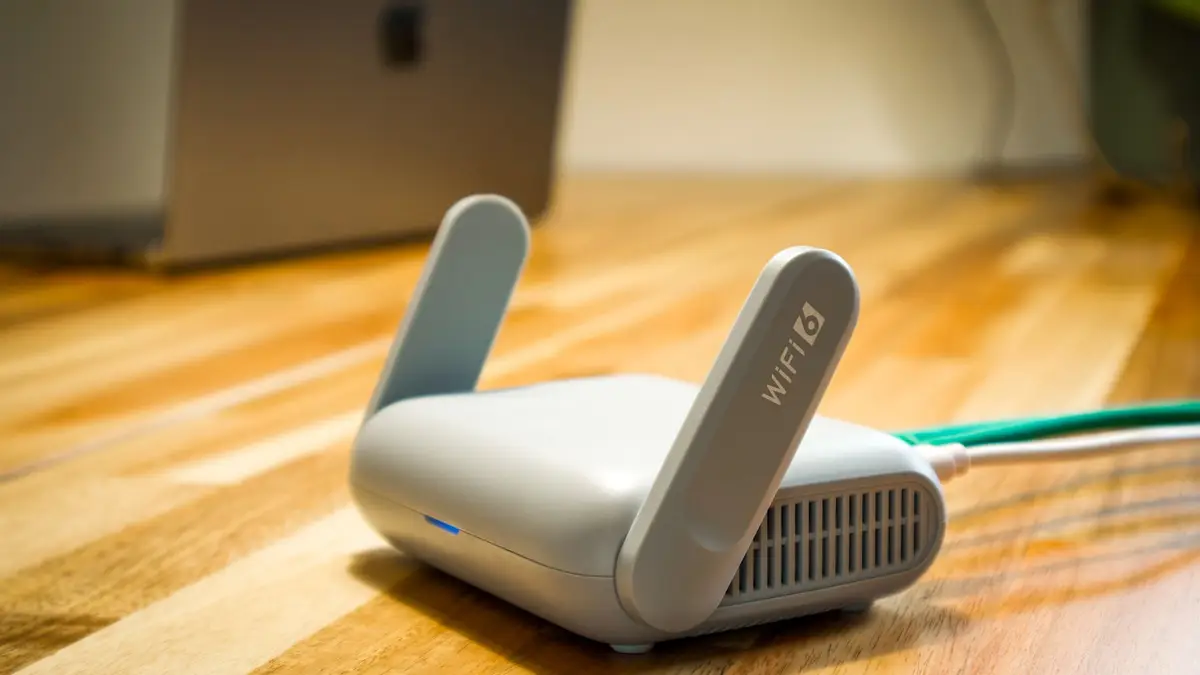
How to Stop IPTV Buffering UK
If your IPTV keeps buffering, freezing or dropping quality, the interruption does not automatically mean the service itself is at fault. IPTV buffering in UK homes can begin anywhere between the source stream and your television: the broadband line, a congested Wi-Fi channel, an overloaded router, an ageing Firestick, an unsuitable video resolution, busy network routing or a poorly configured VPN. This guide explains how to stop IPTV buffering UK viewers experience by diagnosing the path in order rather than changing several settings at once. You will learn how to isolate each cause, apply ten practical fixes and build a more stable IPTV UK setup for live television, sport and 4K viewing.
Why Does IPTV Keep Buffering in the UK?
Buffering happens when the player consumes video data faster than the next portion arrives. The app temporarily pauses playback while it refills a small memory buffer. A brief pause can follow a momentary network fluctuation; repeated pauses indicate that available throughput, latency or device performance cannot consistently meet the stream's requirements.
Your advertised broadband speed is only the starting point. A 100 Mbps package may deliver far less to a television behind two walls on crowded 2.4 GHz Wi-Fi. Speed tests also show a short average, whereas live IPTV needs sustained delivery. Packet loss, jitter and latency spikes can disrupt a stream even when the headline download result looks strong.
Local demand matters too. Cloud backups, game downloads, video calls and several simultaneous 4K streams compete for the same connection. The router must process every flow, and older hardware may struggle at busy times. On the viewing device, limited memory, background apps, heat or outdated software can make decoding fail even when the network is healthy.
Finally, the wider route between your ISP and the streaming server can become congested. Peak evening demand or a poor interconnection may affect one group of channels while others remain stable. A VPN can sometimes change that route, but it can also add distance and encryption overhead. That is why useful troubleshooting separates internet, Wi-Fi, device, stream and routing problems before choosing a remedy.
How to Stop IPTV Buffering UK — 10 Practical Fixes
Work through these fixes in sequence and test the same channel for several minutes after each change. A controlled process makes it easier to identify the real cause and prevents a temporary improvement from being mistaken for a permanent solution.
1. Measure speed on the actual IPTV device
Run a reputable speed test on the Firestick, Smart TV, Android box, phone or computer that is buffering—not only on a laptop beside the router. Test at the time the problem normally occurs. For a single stream, allow roughly 10–15 Mbps for HD, 25 Mbps for Full HD and at least 50 Mbps of stable capacity for 4K, with extra headroom for other household activity.
Repeat the test two or three times and note large swings, not just the best result. If speed near the router is strong but weak at the television, the issue is your local wireless link. If every device is slow, restart the network equipment and then contact your ISP if the line remains below its expected range.
2. Use Ethernet wherever possible
A wired Ethernet connection removes radio interference, channel congestion and signal loss through walls. Connect the IPTV device directly to the router with a Cat5e or Cat6 cable, then disable Wi-Fi on that device so it cannot silently reconnect wirelessly. If the device has no Ethernet port, use a compatible USB Ethernet adapter. Powerline adapters can help where cabling is impractical, although their performance depends on the home's electrical wiring.
3. Improve the Wi-Fi connection
When Ethernet is unavailable, use 5 GHz or 6 GHz Wi-Fi at short range; these bands usually offer more capacity and less interference than 2.4 GHz. Place the router in an open, elevated position rather than inside a cabinet or behind the television. Reduce obstacles between the router and device, and avoid placing it beside cordless-phone bases, microwaves or other radio equipment.
A mesh system can improve coverage in larger homes, but connect the television to a nearby mesh node with Ethernet where possible. In densely populated areas, selecting a less crowded Wi-Fi channel can reduce IPTV streaming problems. Do not rely on a weak repeater that halves available wireless capacity.
4. Restart the router, modem and player
Power down the IPTV device and router. If you have a separate modem or fibre terminal, restart that as well. Leave the router disconnected for about 60 seconds before powering it back on, wait until the connection is fully restored, and then restart the player. This clears temporary routing tables, memory pressure and stalled sessions. A restart is useful diagnosis, but equipment that needs daily reboots may be overheating, overloaded or ready for replacement.
5. Reduce competing network traffic
Pause console updates, cloud photo synchronisation, large downloads and unnecessary 4K streams while testing. Check whether unknown devices are connected to your Wi-Fi and secure the network with a strong password. If your router supports Quality of Service, prioritise the IPTV device rather than an individual port used by many applications. Leave bandwidth headroom: a line operating continuously at its maximum is more vulnerable to brief speed drops.
6. Check the device's performance
Close unused apps, clear the IPTV app's cache and make sure the device has free storage. Low-cost streaming sticks can slow down when storage is nearly full or when several apps remain active. Allow airflow around the device and use the supplied power adapter rather than an underpowered television USB port.
Test the same account on a second device. If playback is stable there, the original device or app is the likely bottleneck. For consistent fast IPTV streaming, newer hardware with adequate memory, modern Wi-Fi and hardware decoding is usually more reliable than an ageing entry-level box.
7. Match video quality to available bandwidth
Select Full HD or HD temporarily instead of forcing 4K. If the lower-resolution stream is stable, the connection lacks sufficient sustained capacity for the higher bitrate or the device cannot decode it smoothly. Automatic quality can help on variable connections, while a fixed lower setting prevents constant switching. The best resolution is the highest one your complete setup can maintain, not simply the highest option in the menu.
8. Update the IPTV app, device and router
Install current versions of the player, device operating system and router firmware. Updates often improve codec support, memory handling, Wi-Fi drivers and security. After updating, restart the device and confirm that hardware acceleration is enabled unless the app developer recommends otherwise. If problems began immediately after an update, test another supported player before changing network settings.
9. Compare channels, times and players
Determine whether buffering affects every stream or only one channel, category, resolution or time of day. One unstable channel suggests a source-specific issue; every channel buffering points more strongly to the connection, device or route. Compare live TV with VOD and test a second supported player. Record the channel, time and device before contacting support—specific evidence enables faster diagnosis than saying only that IPTV keeps buffering.
10. Test VPN and network routing carefully
First test with the VPN disabled, then connect to a nearby UK server and repeat under similar conditions. If a nearby VPN route is more stable, the original ISP path or traffic handling may have contributed. If performance worsens, choose a closer or less busy server, try a modern protocol such as WireGuard where supported, or disable the VPN. Change one variable at a time and compare sustained playback, not only speed-test numbers.
Can a VPN Help With IPTV Buffering?
A VPN encrypts traffic between your device and a VPN server, then sends it onward through a different network path. That change can help when the normal ISP route to a streaming endpoint is congested or inefficient. It may also reduce the ability of local network observers to identify the service being accessed. These are routing and privacy effects—not extra bandwidth.
A VPN does not automatically stop IPTV buffering. Encryption requires processing, and sending traffic through an additional server can increase latency. A distant, overloaded or poorly connected VPN server may make playback worse. If the original problem is weak Wi-Fi, an underpowered device or insufficient broadband speed, a VPN cannot repair it.
For a fair test, select a geographically close server, use a current protocol, and compare the same channel at the same resolution with and without the VPN. Keep the option that produces the most stable result. Performance depends on the broadband connection, local network, device, VPN server, route and stream at that moment.
British TV's Built-in VPN
British TV combines access to 65,000+ live channels and 180,000+ VOD titles with built-in VPN functionality designed to make privacy and network-routing options easier to manage. Rather than installing an unrelated VPN app and switching between separate interfaces, customers can use the supported setup guidance for their device and connection.
The built-in VPN is designed for a smoother streaming experience and can help address network-routing and privacy considerations. It is not a promise that every stream will be buffer-free on every connection. Results still depend on broadband capacity, Wi-Fi or Ethernet quality, device performance, network conditions and the selected stream.
For the strongest setup, pair the service with Ethernet or high-quality 5 GHz Wi-Fi, current device software and a resolution appropriate for your line. You can review the available IPTV subscription options on the homepage or contact support for device-specific guidance.
How to Improve 4K IPTV Streaming
4K IPTV UK streams contain substantially more picture data than HD or Full HD. Compression reduces the required bitrate, but scenes with fast sport, rain, crowds or film grain can still create demanding peaks. A speed test showing exactly 50 Mbps leaves little margin if other devices are active. Aim for stable capacity above the stream's requirement rather than treating a minimum figure as a guarantee.
Use Gigabit Ethernet where possible. If you rely on Wi-Fi, keep the device close to a modern router on 5 GHz or 6 GHz and verify that both ends support the chosen standard. Avoid old HDMI cables or television ports that cannot handle the required 4K format, and ensure the player supports the stream's codec in hardware. Software decoding on a weak device can look like network buffering.
If 4K freezes during peak periods, compare the Full HD version of the same channel. Stable Full HD confirms that the service remains usable while you investigate bandwidth, routing or device limits. For live sport, consistent motion and uninterrupted playback are usually more valuable than forcing a higher resolution.
IPTV Buffering Troubleshooting Checklist
Use this short checklist whenever IPTV buffering problems return. Test after each step and stop when playback becomes consistently stable.
- Run a speed test on the device that is actually buffering.
- Connect by Ethernet, or move the device onto strong 5 GHz or 6 GHz Wi-Fi.
- Restart the modem, router and IPTV device in that order.
- Pause downloads, cloud backups and other high-bandwidth streams.
- Close background apps, clear the player cache and free device storage.
- Lower the stream from 4K to Full HD or HD as a comparison.
- Update the IPTV app, operating system and router firmware.
- Check whether all channels buffer or only one source.
- Compare another supported player or device.
- Test the nearest VPN route both enabled and disabled.
- Record the channel, time, device and connection type before contacting support.
Frequently Asked Questions
These answers cover the most common questions UK viewers ask when diagnosing interrupted IPTV playback.
Frequently Asked Questions
Why does IPTV buffer?
IPTV buffers when video data does not arrive consistently enough to keep the player's buffer filled. Common causes include weak Wi-Fi, insufficient bandwidth, network congestion, packet loss, an overloaded device, a demanding resolution or a poor route between the ISP and stream.
How can I stop IPTV buffering?
Test speed on the viewing device, switch to Ethernet, improve Wi-Fi, restart the network, reduce competing traffic, clear device resources, lower the resolution, install updates and compare channels or players. Test VPN routing only after checking the local network.
Does Ethernet reduce IPTV buffering?
Ethernet often reduces buffering because it avoids wireless interference, weak signals and congested Wi-Fi channels. It cannot fix a slow broadband line or remote server issue, but it removes one of the most common sources of instability inside the home.
Can a VPN affect IPTV buffering?
Yes. A VPN can improve playback when its route avoids congestion or inefficient ISP routing, but it can also add latency and reduce speed. Compare a nearby VPN server with the VPN disabled under similar conditions.
Does 4K IPTV need faster internet?
Yes. 4K streams use substantially more bandwidth than HD or Full HD and need greater headroom for bitrate peaks. A stable connection of at least 50 Mbps for one 4K stream is a practical starting point, with more capacity needed when other devices are active.
Why does IPTV buffer during peak hours?
Evening buffering can result from congestion on the home network, the local ISP network, internet interconnections or a particular stream source. Compare multiple channels, use Ethernet, pause other traffic and test an alternative route to identify where the slowdown occurs.
Conclusion
To understand how to stop IPTV buffering UK viewers should diagnose the full path in order: broadband, home network, device, resolution, stream and routing. Ethernet, sensible quality settings and current hardware solve many issues, while a carefully tested VPN route can help in specific network conditions. British TV's built-in VPN, 65,000+ live channels, 180,000+ VOD library and 4K capability are designed for a smoother, more flexible viewing experience, but stable performance still depends on the connection, device, network conditions and selected stream.